How to setup 2FA for Roblox account?
Step-by-step guide to setting up two-factor authentication on Roblox using an authenticator app.
Download Authenticator App
Before we start, download and install the Authenticator App from your device's App Store.



To setup 2FA for your Roblox account with our Authenticator App, you need to follow the next steps:
Log in to your Roblox account. Go to the Roblox website and log in to your account.
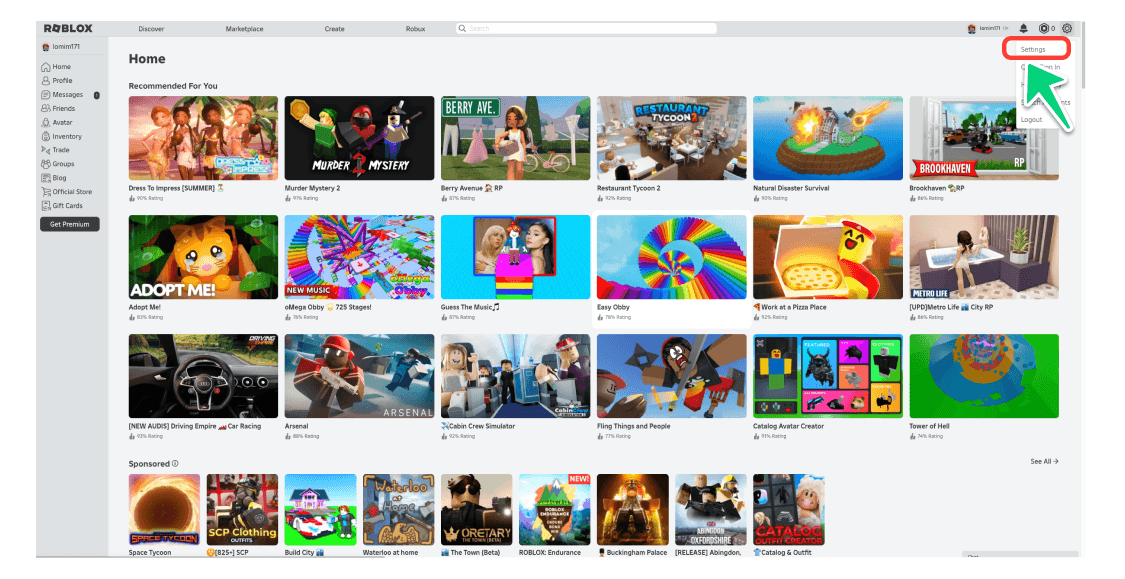
Go to Settings. Click the settings icon in the upper-right corner to open "Settings".
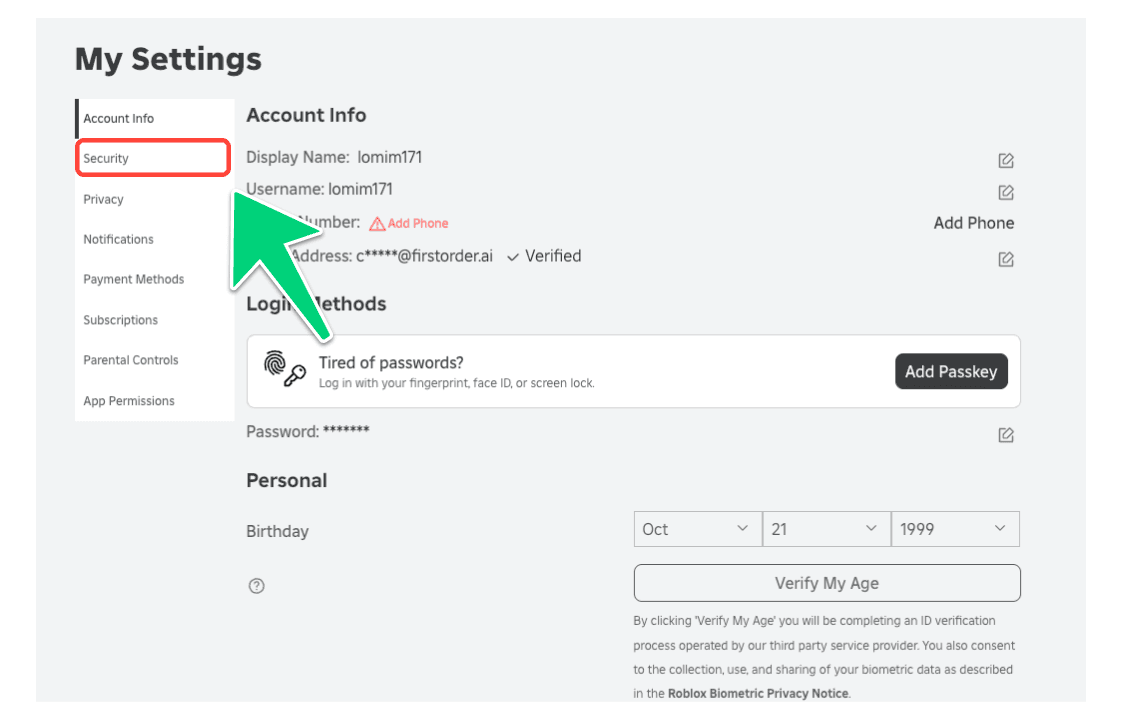
Access Security Settings. In the Settings page, click "Security".
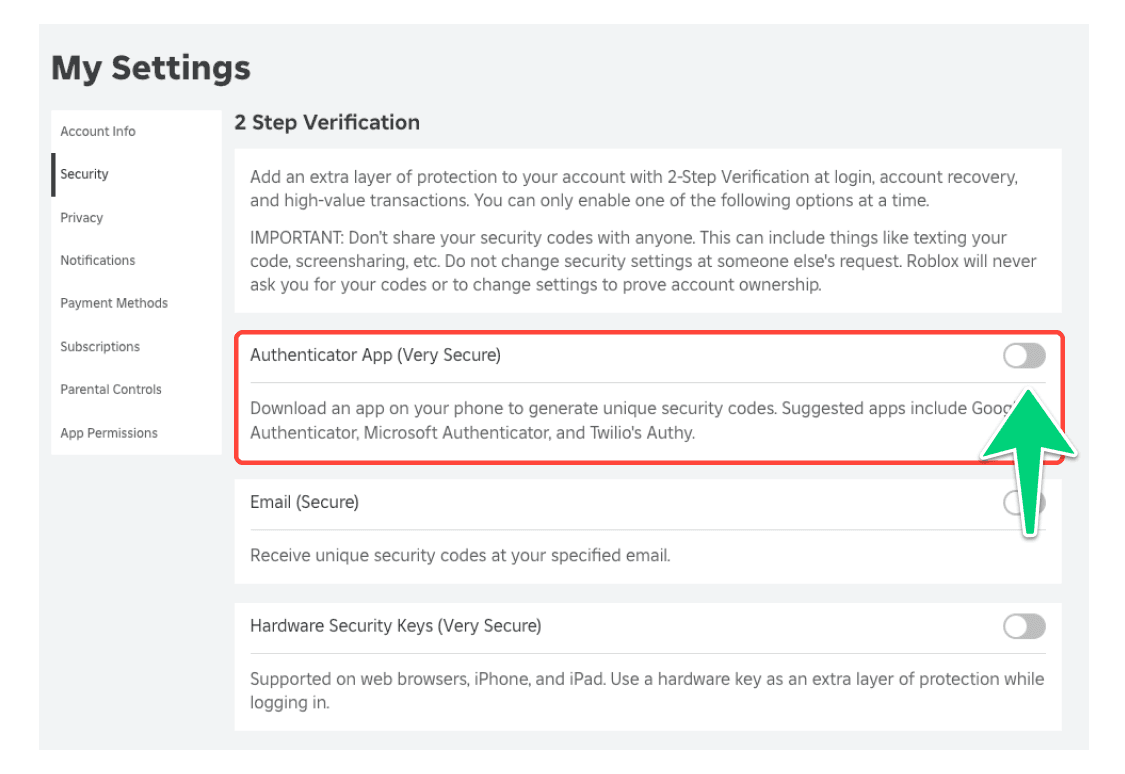
Enable Authenticator App. Find the "Authenticator App" option and turn it on. A QR code will be displayed.
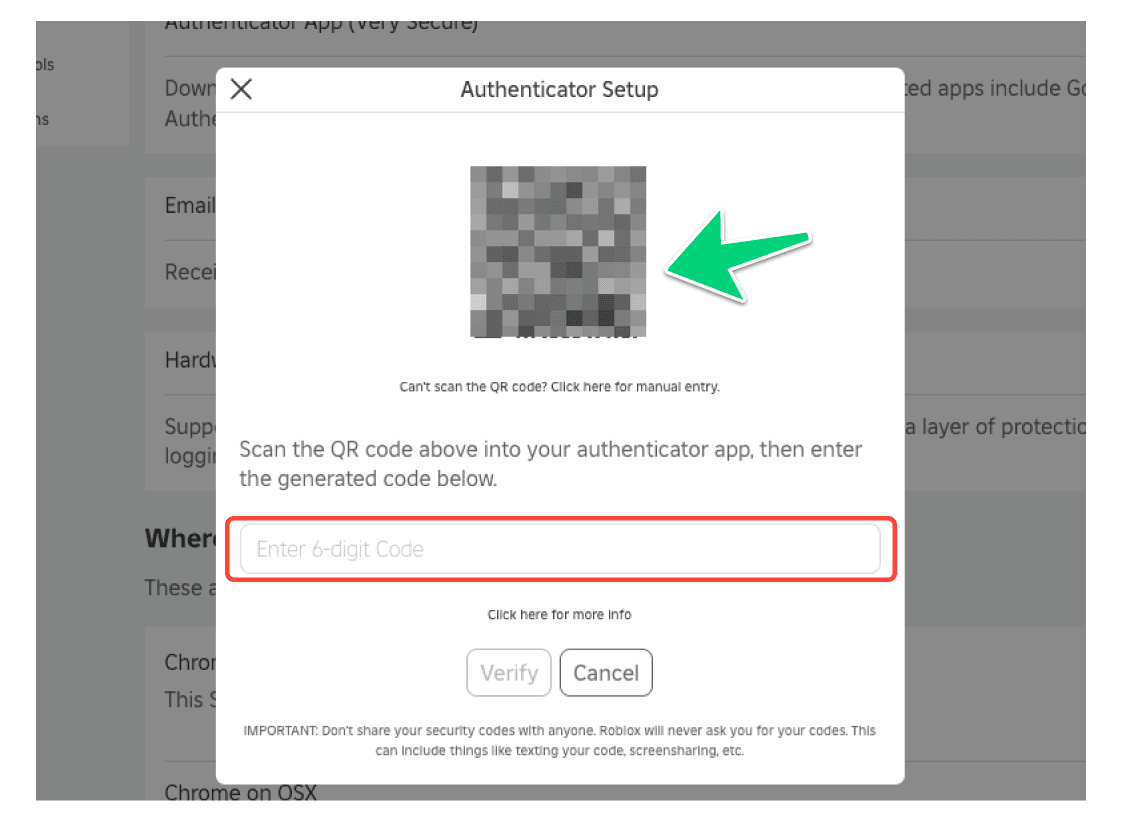
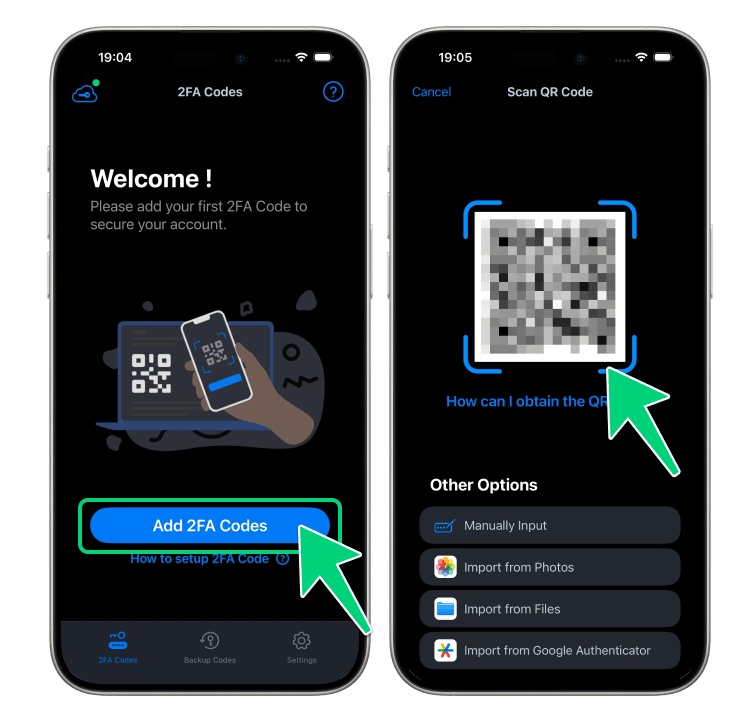
Scan the QR Code. Open our Authenticator App, tap the [+] button, and scan the QR code displayed.
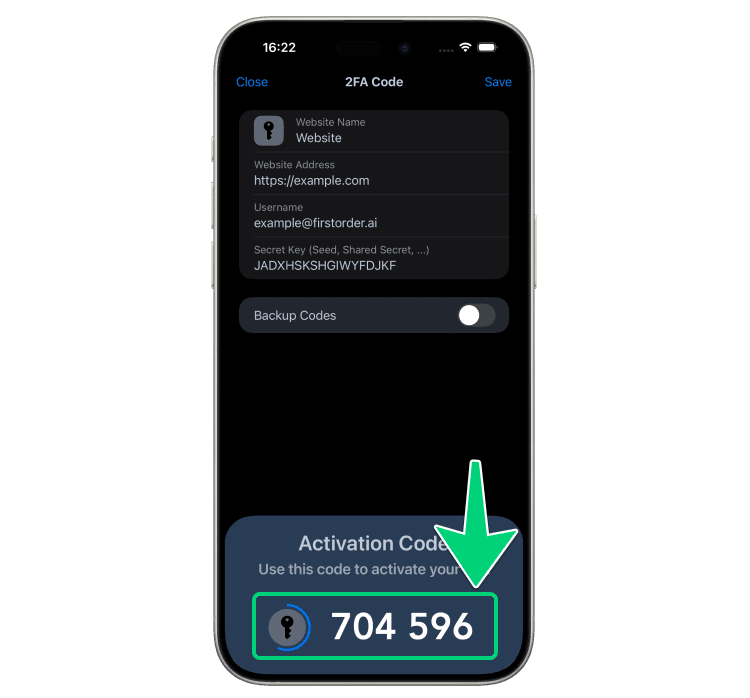
Enter the Verification Code. After scanning, your Authenticator App will generate a 6-digit code. Enter this code into the input field on the Roblox page and click [Verify]. Note that the code is valid for only 30 seconds. Once verified, click [Save] to complete the setup.
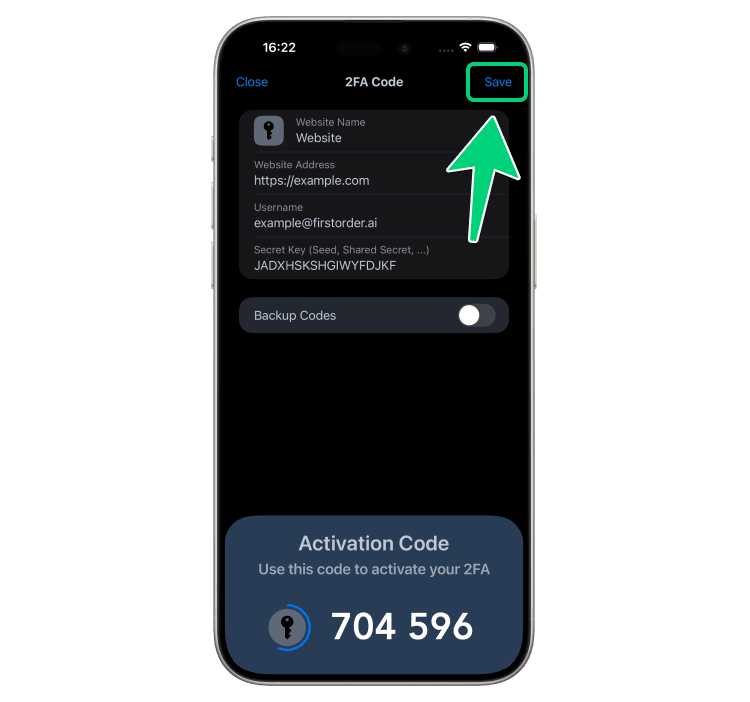
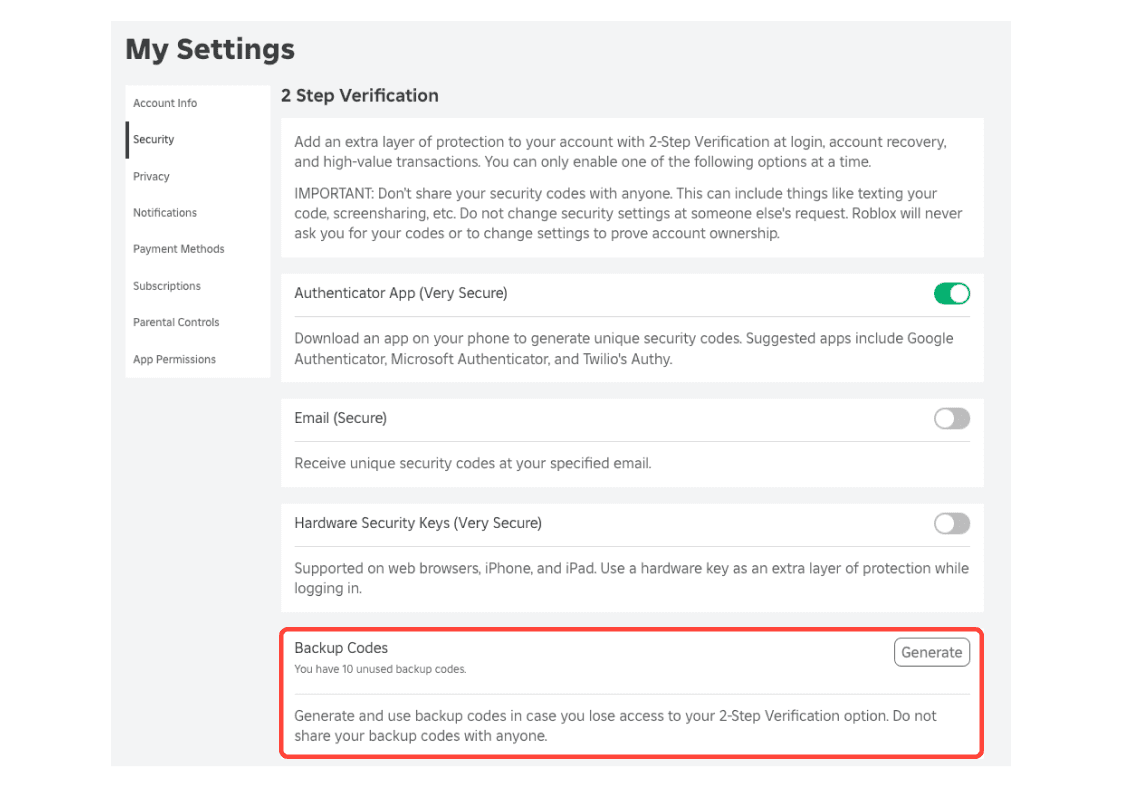
Complete the Setup. You've now enabled two-factor authentication (2FA) for your Roblox account. To prevent being locked out if you lose access to your 2FA device, consider adding backup codes. These backup codes can be found in the same security settings page and can be used if needed.