
How to setup 2FA for Instagram account?
Step-by-step guide to setting up two-factor authentication on Instagram using an authenticator app.
Download Authenticator App
Before we start, download and install the Authenticator App from your device's App Store.



To setup 2FA for your Instagram account with our Authenticator App, you need to follow the next steps:
Open the Instagram app on your device and log in to your account.
Tap on your profile picture in the bottom right corner to go to your profile.
Tap the Menu icon (three horizontal lines) in the top right corner, then select "Settings".
Tap "Accounts Center", then select "Password and security".
Tap "Two-factor authentication", then select the Instagram account you want to set up 2FA for.
Tap "Authentication app".
If the Authentication app option is turned off, tap the switch next to it to turn it on and follow the on-screen instructions.
In this step, a QR code containing the secret key is displayed. Next, you need to use our Authenticator App to scan this QR code. Please keep this popup open to complete the setup.
Open our Authenticator App, click the + button at the bottom right of the screen, then hold your device near the screen to scan the QR code.
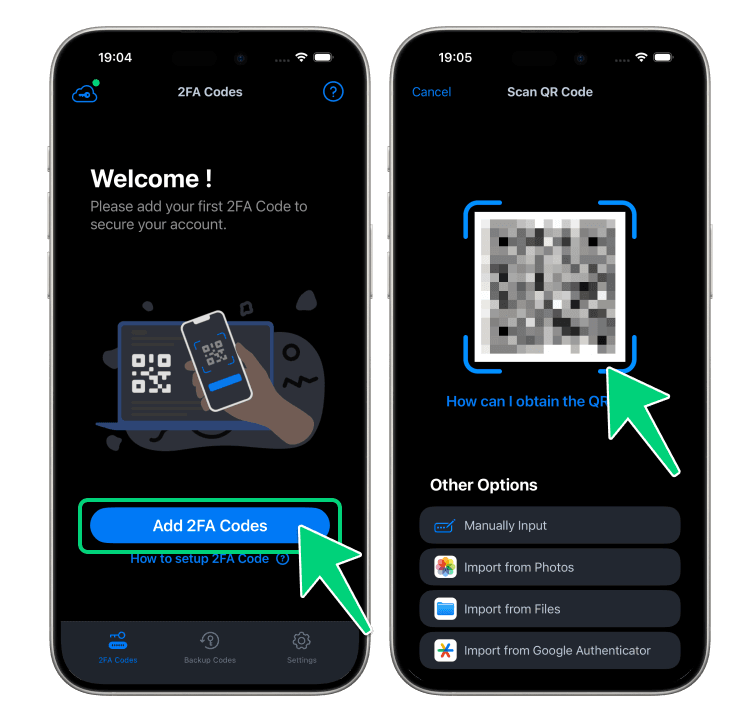
After successfully scanning, a 6-digit code will be shown at the bottom of the screen. Please note that this code refreshes every 30 seconds.
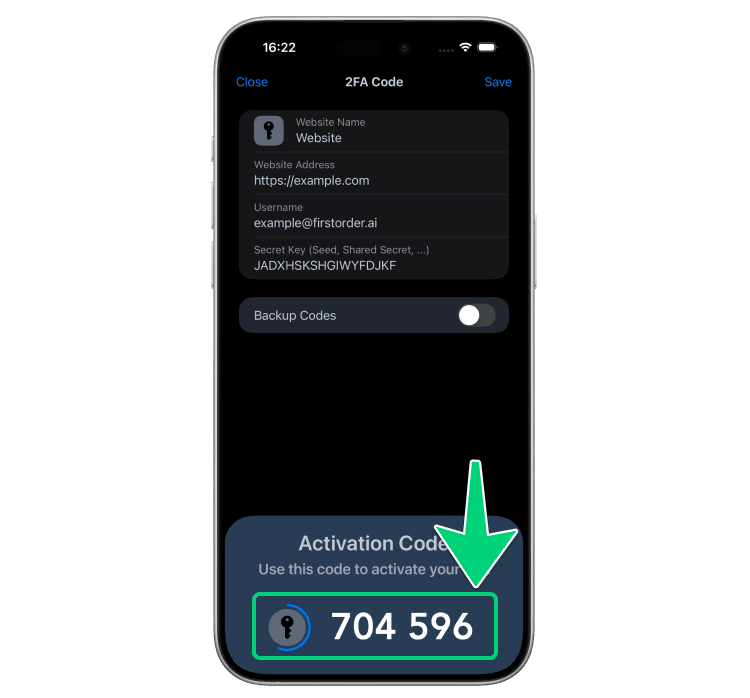
Return to the Instagram app, and enter the 6-digit code displayed in step 10.
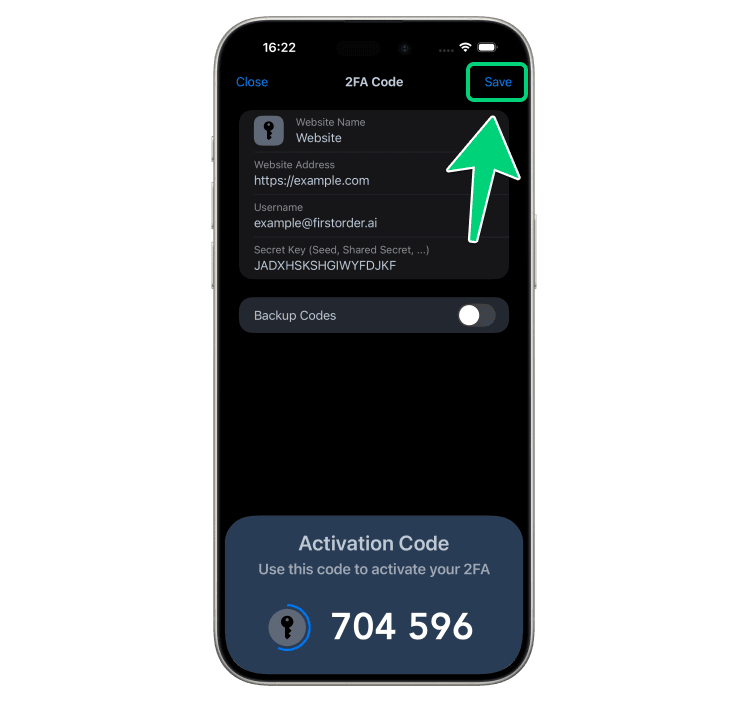
Remember to click "Save" in the Authenticator App to save your account, or you may lose access to your account!
Now, you have successfully setup 2FA for your Instagram account. From now on, when you attempt to sign in to your Instagram account, you will need to use our Authenticator App.